Four months after it was first unveiled to the world, Microsoft unleashed Windows 11 to end users earlier this week. As you may know, the minimum system requirements for the new operating system are not only much higher than its predecessor but is also more stringent, down to the mandatory TPM 2.0 chip and specific lists of supported processors.
Interesting enough, there is a way to bypass the TPM and CPU check and believe it or not, this came directly from Microsoft. All you need to do is add a registry key value into your machine.
If you decide to do this, do make sure to be careful as your machine could turn haywire if you did something wrong in the Registry Editor. So, here are the steps:
Press the Windows button, type Registry Editor, and click on the search result once the program appears. Alternatively, press Windows + R to open the Run command window, type regedit, and press OK.
Press Yes when User Account Control pops up.
Find HKEY_LOCAL_MACHINE\SYSTEM\Setup\MoSetup.
Right-click on the right-hand panel and choose New > DWORD (32-bit) value.
Type AllowUpgradesWithUnsupportedTPMOrCPU as the Value name.
Type 1 as the Value data. Leave the Base as Hexadecimal.
Press Ok and close the Registry Editor.
Do note that you still need a TPM 1.2 chip to be present and enabled in your machine before you can install Windows 11. Furthermore, Microsoft has said that unsupported PC will not be entitled to updates and that also include security updates.
Windows 11 has finally been released to the public not too long ago. However, if you happen to own a PC running on an AMD Ryzen processor, it is advisable that you hold off from upgrading to the new platform for a while longer. The company has recently acknowledged issues that are affecting its chips when running the new operating system, with dips of up to 15 percent in performance during certain instances.
According to AMD’s support page, both the company and Microsoft have found two main issues which, thankfully, are software-based rather than hardware related. This means that the problems can be remedied with a future update for Windows 11, so AMD Ryzen owners can still breathe a sigh of relief.
It turns out that Windows 11 may cause the L3 cache latency to triple, which causes a drop of three to five percent in performance when running most affected applications. This is more apparent when running games, especially those – as AMD puts it – that are “commonly used for eSports” – with performance seen to dip down around 10 to 15 percent.
The second is AMD’s “preferred core” technology, which Windows 11 is also reported to be having issues with. For the uninitiated, the tech shifts threads over to the fastest core on a processor in order to boost frequencies. AMD says that those on Ryzen CPUs with more than eight cores above 65W TDP will encounter performance drops on the new operating system, especially with CPU-reliant tasks.
AMD is assuring users that a software fix for both issues are currently under development, and are expected to be released sometime later in October. Suffice to say, it’s best to stick with Windows 10 until the solutions are made available if you’re running a Ryzen-equipped system.
AMD’s latest Radeon Software Adrenalin drivers, version 21.9.1, is now live and as with all GPU drivers, it comes pack with several updates. Included in the new update is a new Auto-overclocking feature, and support for Microsoft’s Windows 11.
The support for Windows 11 is pretty much self-explanatory for Radeon users who are part of the Microsoft Windows Insider Program. With Adrenalin 21.9.1, you effectively gain access to the full suite of Radeon-related features, including Radeon boost, Radeon Anti-Lag, and Radeon Image Sharpening. In addition, the new drivers will also allow users to use the AMD Link app with the Windows 11 insider build.
Moving on, the new Radeon Auto-Overclock is the latest addition to AMD’s Radeon Software and is easily accessible via program’s Tuning tab. The feature is a one-button does all, conveniently located in the Tuning Control section and as the name suggests, clicking the button will automatically adjust the performance of your Radeon GPU and Ryzen CPU. Do note that, as per AMD’s blog, the Auto-Overclocking feature will only function with Radeon RX 6000 Series GPUs and Ryzen 5000 Series CPUs.
Last but not least, the Adrenalin 21.9.1 drivers also carry FidelityFX Super Resolution (FSR) support for several titles, which includes Resident Evil Village, Chernobylite, and Arkane’s newly launched title, Deathloop, among many others.
Over the last couple of weeks, Microsoft has made clear its hardware requirements to run Windows 11, while also reaffirming customers whose PCs don’t meet the standard that it won’t leave them in the lurch just like that, saying they will still be able to install the OS via an ISO.
Now it appears that the company is having a Mr. Hyde moment and telling all who do the latter that there is a catch: while users can install the Windows 11 via ISO, it will withhold the Windows Update feature if it detects that PC’s components are not up to its specifications.
While it is clear that the existence and function of Windows Update will certainly divide the room, one cannot argue that withholding the program means that said PCs will lack the ability to automatically download and install important security updates from the parent company over time. Even if some of us are perfectly content with having the feature disabled and turned off.
At this point, there is really no reason for Microsoft to act this way, especially if Microsoft intends for wider adoption of Windows than what it already has. However, as The Verge puts it, this could just be a “cover-your-ass” measure, aimed at discouraging the masses from thinking that it would offer a warranty or technical support for PCs that fail to meet the requirements.
Mind you, this isn’t Microsoft outrightly saying that its withholding updates for Windows 11 altogether; in theory, users adamant about sticking with systems running on CPUs older than Intel’s 8th generation Coffee Lake or AMD’s 1st generation Zen architecture can still get the update, albeit by manually downloading and installing said updates, on a per release basis.
Ultimately, Microsoft’s “selfish” act of withholding the updates can be viewed from a couple of viewpoints. The first is that the company would rather threaten its customers indirectly, rather than backtrack and make changes to the system requirements for Windows 11. The second? The move is Microsoft’s not-so-subtle way of pressuring PC owners into updating their systems with the latest hardware currently on the market.
Microsoft has announced that the general release of Windows 11 will officially take place starting from 5 October onwards. The announcement took place just two months after the new operating system made its official debut back in June.
So, what exactly going to happen on 5 October when it comes to Windows 11? For starters, it will be the day that consumers begin to be able to get their hands on PCs that are pre-installed with the new operating system.
At the same time, Microsoft said that it will begin to roll out Windows 11 to eligible Windows 10 PCs but this is where you have to manage your expectations. In today’s announcement, the company noted that newer devices will be offered to upgrade first.
Microsoft also said that the actual availability of the update for each device will depend on several factors including hardware eligibility, reliability metrics, and age. Nevertheless, the company expects that all eligible Windows 10 PCs will receive the free Windows 11 upgrade offer by the middle of 2022.
In case you missed it, here is the minimum system requirement for Windows 11:
Dual-core 64-bit processor or SoC running at 1GHz
DirectX 12-compatible graphics with WDDM 2.0 driver
9-inch display with HD 720p resolution and 8-bits colour depth
4GB of RAM
64GB storage
UEFI, Secure Boot capable system firmware
Trusted Platform Module 2.0
Not to forget, your system must also be powered by one of these AMD, Intel, or Qualcomm processors in order to be an eligible Windows 11 system. While you may be able to the new operating system on your machine through the age-old ISO method despite it not meeting the requirement, you may have to manually download and install important updates as Microsoft is going to cut off the Windows Update feature on unsupported PCs.
Here, we have put together a simple and straightforward guide on how to download and install Windows 11 on a laptop or desktop. We have also added a troubleshooting section in case you get the “The PC Can’t Run Windows 11” error. So without further ado, let’s dive in.
Download the Leaked Windows 11 ISO Build 21996
Note: Before you go ahead and install Windows 11 on your PC or laptop, we would like to make it clear that this is a leaked Windows 11 build. The Windows 11 build #21996 linked below does not officially come from Microsoft. It does not include all of the rumored new features, could be riddled with bugs, and render your computer unusable if not installed properly. So, we suggest you proceed with caution and install this leaked Windows 11 build on a secondary device if possible.
First of all, download the leaked ISO image of Windows 11 right here. We have used this ISO file to install Windows 11 in this article. If the link is not working, you can use this mirror link to download the Windows 11 ISO image.
Since the previous download links for the Windows 11 ISO image are no longer live, you can rely on these mirror links to get the leaked build. But do note that Google Drive also has a daily download limit, and the links may not work at all times. So you can choose to bookmark this article and return tomorrow, when the data limit resets, to download the leaked Windows 11 build:
Keep in mind that the leaked build is a 64-bit ISO image, so you won’t be able to install Windows 11 on your 32-bit Windows PC as of now.
Install Windows 11 on Any Laptop, PC (Simplest Method)
If you have a newer laptop or PC and Windows 10 is already activated on your computer, then this is the simplest way you can install Windows 11. Having said that, keep in mind, I can’t guarantee that you will get updates once Windows 11 goes live officially. You may have to install the official builds manually. Also, this process takes a bit more time in comparison to other bootable methods, but it’s pretty seamless.
Another good thing is that you can seamlessly switch back to Windows 10 in case you find Windows 11 buggy. Finally, if you get any error, including “This PC can’t run Windows 11” or anything related to TPM, Secure Boot, jump to the next method for an alternate method.
1. As you have already downloaded the Windows 11 ISO image from the above link, it’s time to put the show into action. Right-click on the ISO image and click on “Mount“.
2. Next, the ISO image will load as a DVD drive. Open it and double-click on “setup“.
3. A Windows 11 installer will open up. Click on “Next“.
Note: If you get “This PC can’t run Windows 11” or “The PC must support TPM 2.0” error, move to the next section for a solution.
4. After that, click on “Accept“.
5. Now, wait for a while, and you will see a “Ready to Install Windows 11” prompt. You can click on “Change what to keep” to customize your Windows 11 installation.
6. Here, you can choose if you want to keep both your personal files and apps or just your personal files or nothing at all, basically a clean install. I would recommend the first option so that all your files and programs remain intact.
7. Finally, click on “Install“, and it will start the Windows 11 installation process. It will take considerable time, so keep patience. During the process, your machine will restart and apply the update again.
8. Once the update is done, you will be greeted with the new startup sound and login screen. Enter the same PIN or password that you had on your Windows 10 setup and hit enter. Voila, Windows 11 will be live on your PC with your license, apps, files, and everything intact.
This PC Can’t Run Windows 11? Here is the Fix
This section is for all those users who were unable to install Windows 11 from the first method due to the TPM error. Don’t worry, you need to make one change, and you will be off to the same installation path. Here is how to go about it.
1. You need to download a small appraiserres.dll file. Just click Here and download the ZIP file. After that, extract the ZIP file to get the DLL file.
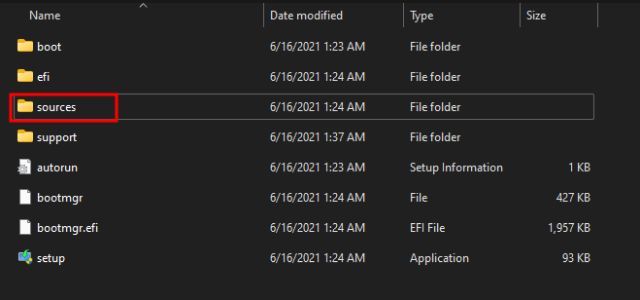
2. Now, right-click on the Windows 11 ISO image and mount it. After that, copy all the files and folders inside the ISO image.
3. Next, create a “Windows 11” folder on the desktop.
4. After that, open the Windows 11 folder and paste everything (Ctrl +V) you copied from the Windows 11 ISO image.
5. Next, copy the DLL file.
6. Now, move to “Sources ” inside the Windows 11 folder and paste it. When prompted, click on “Replace the file in the destination“. You are almost done.
7. Open the Windows 11 folder and double-click on “setup“, and this time, you won’t face any errors.
8. Follow the instructions mentioned in the above section and continue. The Windows 11 installation process will now start on your laptop or PC without any issue.
9. Here is Windows 11 botted up on my HP laptop, and it’s working fine without TPM support.
Clean Install Windows 11 on Your Laptop, PC (Advanced Users)
This method is for those users who are well-aware of partitioning, BIOS/ UEFI, GPT/ MBR schemes, creating bootable USB drives, and more. Basically, if you have installed Windows 10 on a machine before, this guide is for you. This tutorial will also help those who don’t have an activation key for Windows or those who want to create a dual-boot system along with Windows 10. Now having said all of that, let’s begin.
1. First off, we need to flash the ISO image on a thumb drive. Make sure you have a USB thumb drive with at least 16GB of storage space. Now, go ahead and download Rufus (Free). You can check out Rufus alternatives if you need another software to create the bootable installer drive.
2. Next, launch Rufus and click on “SELECT” and choose the Windows 11 ISO image. Make sure the USB thumb drive is selected in the “Device” drop-down menu. After that, keep everything as default and click on the “START” button.
3. Now, go through the initial on-screen instructions and let Rufus flash Windows 11 on the USB drive.
4. Once the process is done, plug the USB drive on the PC where you want to install Windows 11. If you want to install Windows 11 on the same PC, keep the USB stick plugged in. After that, restart your computer.
4. Next, press the boot key continuously while your computer boots up. It will allow you to select the Boot device. For HP laptops, it’s the Esc or F9 key. You can look for the boot key for your laptop/ PC from the internet. It should be one of these: F9, Esc, F12, F10, etc.
5. From the Boot device options, select the USB thumb drive on which you just flashed the leaked Windows 11 build. Choose the one that has UEFI written next to your USB stick. If there is no UEFI mention, don’t worry, simply choose the USB drive
6. Finally, the Windows 11 installer will start. In rare cases, you might see an initial prompt asking whether you want to continue the upgrade or clean install Windows 11. Click on “No” to clean install Windows 11. Don’t worry, this will not erase all your data.
7. Now, the setup process is similar to how we install Windows 10. Simply choose “Install Now -> I don’t have a product key -> Select Windows 11 edition -> Custom.” If you see Windows 10 editions instead of Windows 11, don’t worry, move on with the installation. You will have Windows 11 by the end of the installation.
Note: If you get “The PC can’t run Windows 11” error, then move to the next section to find the solution.
8. Here, select the partition on which you want to install Windows 11. After that, the Windows 11 installation process will start on your PC.
9. Soon, your PC will restart, and a new Windows 11 OOBE setup screen will appear. You can now unplug the USB stick. Go through the on-screen instructions and sign in with your Microsoft account. You can also create an offline account if you want.
10. Finally, Windows 11 will be live on your PC.
Troubleshoot Windows 11 Installation (Advanced Users)
1. We need to swap some files from Windows 10 so that Windows 11 gets installed without the TPM requirement. Click on this link and download the latest Windows 10 ISO image from Microsoft’s website. I used the Windows 10 May 2021 build, so I will recommend that. By the way, you can also use Windows 10 Media Creation Tool to download the ISO image.
2. Once you have downloaded the Windows 10 ISO image, right-click on it and select “Mount”.
3. The ISO image will be mounted as a drive. Now, move to the mounted drive and open the “Sources” folder.
4. Here, select all the files except for “install.wim” or “install.esd“. Now, press “Ctrl+C” to copy the files. Repeating again, make sure “install.wim” or “install.esd” is not selected when you copy the files.
5. Now, plug the USB thumb drive on which you had flashed Windows 11. Open the USB drive and move to the same “Sources” folder.
6. Here, paste the files you just copied. You can simply use the Windows 10 keyboard shortcut “Ctrl +V”. Basically, we are replacing Windows 11 files with Windows 10 ones except for the “install.wim” or “install.esd” file. When you get a prompt, click on the “Replace the file in the destination” option.
7. Once all the files and folders are copied, your bootable media is ready. Now, boot with the USB stick, and this time, you won’t get “This PC Can’t Run Windows 11” error.
Run Windows 11 On Your Computer Without Any Issue
So that is how you can download the Windows 11 ISO image and get Windows 11 up and running on your laptop or desktop without any issue. I suggest you follow the instructions step by step, and you will have Windows 11 installed in no time. Anyway, that is all from us. If you are facing any issues, comment down below and let us know. We will help you out with any Windows 11 installation woes.
Download Windows11 ISO 64 bit Update 21996 Dev1 Build : This website helps you to find the latest version of Microsoft Download Free Windows 11 ISO 64 bit 32-bit Update with direct download links. The Windows 11 Disc Image (ISO File) 64-bit
Download? is the latest version of the Windows operating system update.
Download Free Windows 11 ISO 64 bit “ There is a lot of rumors that surround the release date of Windows 11 with most people anticipating that Microsoft has no plans of unleashing a new operating system. In part, this is because the software giant recently announced that Windows 10 would be its last release of the operating system. However, it seems like there is a need to relinquish the statement and buckle to the demands of several Windows users who have been waiting for a complete overhaul of Windows 10 and the takeover of Windows 11 that has so many features to be considered as an update of Windows 10.
Windows 11 System requirements:
RAM: 4GB ram 64 bit.
Hard disk space: 16 GB for 32-bit, 20 GB for 64-bit.
CPU: 1 gigahertz (GHz) or faster processor or SoC.
Screen resolution: 800 x 600.
Graphics:Microsoft DirectX 9 or later with WDDM 1.0 driver.
Windows 11 Feature:
Desktop Widgets
Windows type desktop menu
Drag and drop features
Clock Widget with 24 hours and 12 hours format
Weather Widget and RAM info widget
Changeable desktop folders and Live Wallpapers and can Task-bar icons removable
Desktop App Folders and create new Folders features available Weather, Calendar and Photos tiles Added
Task-bar Transparency option added and also can Improve Themes Compatibility
Built-In Gallery Feature added and Photo Tile changeable and Widgets in desktop mode
Provide you the facility to hide your apps from the launcher by long clicking on the app from an app list item.
You can access all apps by just left a swipe on the home screen.
The app can be searched very easily using alphabet index search and by writing the app name in the search option.
It is totally free.
Start Menu – Android application in Stylish Tiles.
Windows 11 Release Date
Microsoft is all set to launch Windows 11 on October 2021, which will be available to the general public. The operating system will be available via Update Centre in Windows 10 and Windows 7
Windows 11 ISO 64-bit download and install
The new operating system can be installed using a DVD or an ISO file that can be written on a USB stick to create a bootable USB Key Windows 11.
Steps to Create Bootable Disk of Windows 11
This can be done using a simple tool such as balena etcher or rufus tool. Install any of them
Firstly Download the Windows 11 ISO from this Link .
Windows 11 will come with a new design that is being dubbed the Microsoft Fluent Design System. It is not only intuitive but also homogeneous between different devices. This means that the look on Windows 11 will be consistent on all devices including mobiles and tablets. Its aesthetics have also been improved with the introduction of a graphical interface that is more animated. Application windows are also enhanced with depth effects and transparent application windows.
Windows 11 Cloud Clipboard:
The core purpose of the cloud clipboard is to make it easier for people to copy and paste between devices.? Users will also be at the convenience of an icon that enables them to associate a smartphone to their PC or Tablet. The Continue on PC? button allows a user to view content that he or she has been working on a mobile device or tablet from a PC. It enables continuity and has very similar characteristics to Universal Apps.
Windows 11 Timeline:
With a timeline, a user can go back in time and find files, applications, or websites that had been opened previously by users. This history is available to all devices that are logged in to the same Windows account. Currently, there are limitations to this feature in that, it is only available to a few applications that include Word Pad, Office, and Paint.
Windows 11 Near share: This feature makes it possible for a PC user to send and receive files from others in its vicinity via Bluetooth or WiFi. All a user needs to do is activate the feature via the notification centre and it will allow you to exchange files. To send a document to another device, just select and right-click on it after which you can follow the resulting instructions to proceed.
Windows 11 eSIM
The new operating system will support pre-integrated SIM cards. The purpose of this is to save notebook users the pain of having to activate their telecom via the store box. They just need to associate their cloud profile with the package of their notebook.
FAQ of Windows 11
Question 1: Will there be Windows 11?
Answer: The Windows 11 Developer preview build
Question 2: Should I wait for Windows 11?
Answer: No because Microsoft is not launched any windows 11 in nearby future, if they planning for newer version of windows say 11, 12 or 13 etc., then you may get update so, you not to worry about newer version of windows.
Question 3: What happens when Windows 10 support ends?
Answer: What Will Happen When Windows 10 Support Ends? Once extended support ends (or support ends for a particular version of Windows 10), that version of Windows is effectively dead.
Question 4: When did Windows 11 come out?
Answer: When is windows 11 releasing? Microsoft is all set to launch Windows 11 on October, 2021, which will be available to the general public. The operating system may be available via Update Centre in Windows 10 and Windows 7.
Question 5: Will Windows 11 be free for Windows 10 users?
Answer: This is something like the Office 365 model, with the one exception, Windows 10 feature updates are free and there is no subscription. … Unless Microsoft changes its mind, there will never be a Windows 11. New versions are called Windows 10 versions.
Disclaimer
The website has no affiliation to Microsoft company. All images are copyright of Microsoft. The contents of this Website are based on information generally available to the public from sources believed to be reliable. No representation is made that it is timely, accurate or complete. We have taken due care and caution in compilation of data as this has been obtained from various sources including which it considers reliable and first hand. However, we do not guarantee the accuracy, adequacy or completeness of any information and it is not responsible for any errors or omissions or for the results obtained from the use of such information and especially states that it has no financial liability whatsoever to the subscribers / users of this report. The information herein, together with all estimates and forecasts, can change without notice.